
Data Recovery 101: What to Know Before Your Hard Drive Fails
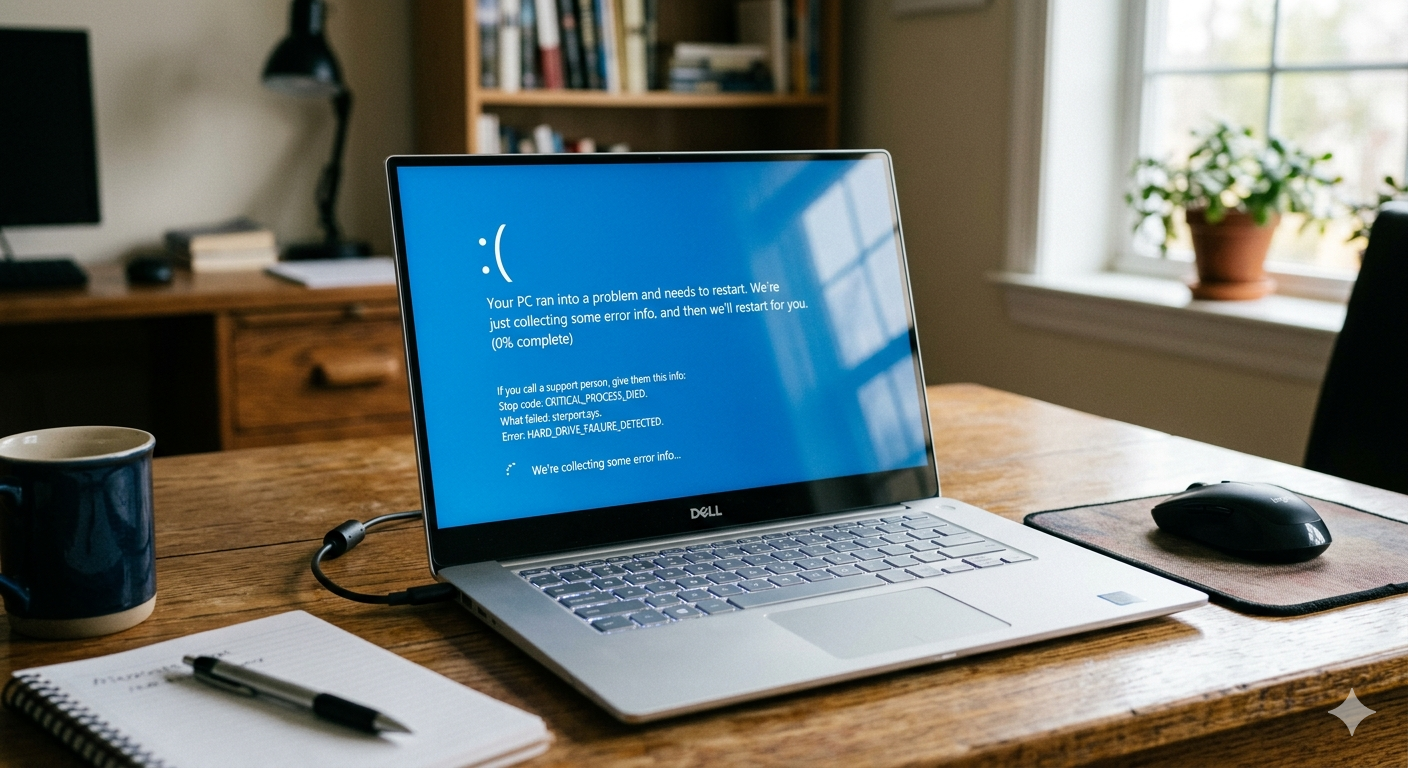
Your photos. Your documents. Your tax records. That project you’ve been working on for months. Everything you care about on your computer lives on a single piece of hardware — your hard drive. And hard drives don’t last forever.
Most people don’t think about data recovery until it’s too late — until the drive stops working and the panic sets in. But a little knowledge ahead of time can make the difference between a recoverable situation and permanent data loss.
Here’s what every PC owner should know about how hard drives fail, what the warning signs look like, and what to do (and not do) when the worst happens.
Hard Drives Don’t Last Forever
Traditional hard disk drives (HDDs) use spinning platters and a mechanical arm to read and write data. Those moving parts wear out over time — and when they do, the data stored on the drive can become inaccessible. The average lifespan of a hard drive is roughly three to five years, though some last longer and some fail sooner.
Solid state drives (SSDs) are more durable because they have no moving parts, but they’re not immune to failure either. Flash memory cells degrade over many write cycles, and SSDs can fail suddenly from firmware or controller issues.
The takeaway: no storage device is permanent. If your files only exist in one place, they’re at risk.
Warning Signs Your Drive May Be Failing
Hard drives rarely die without warning. If you know what to look for, you can often catch a failing drive before it takes your files with it.
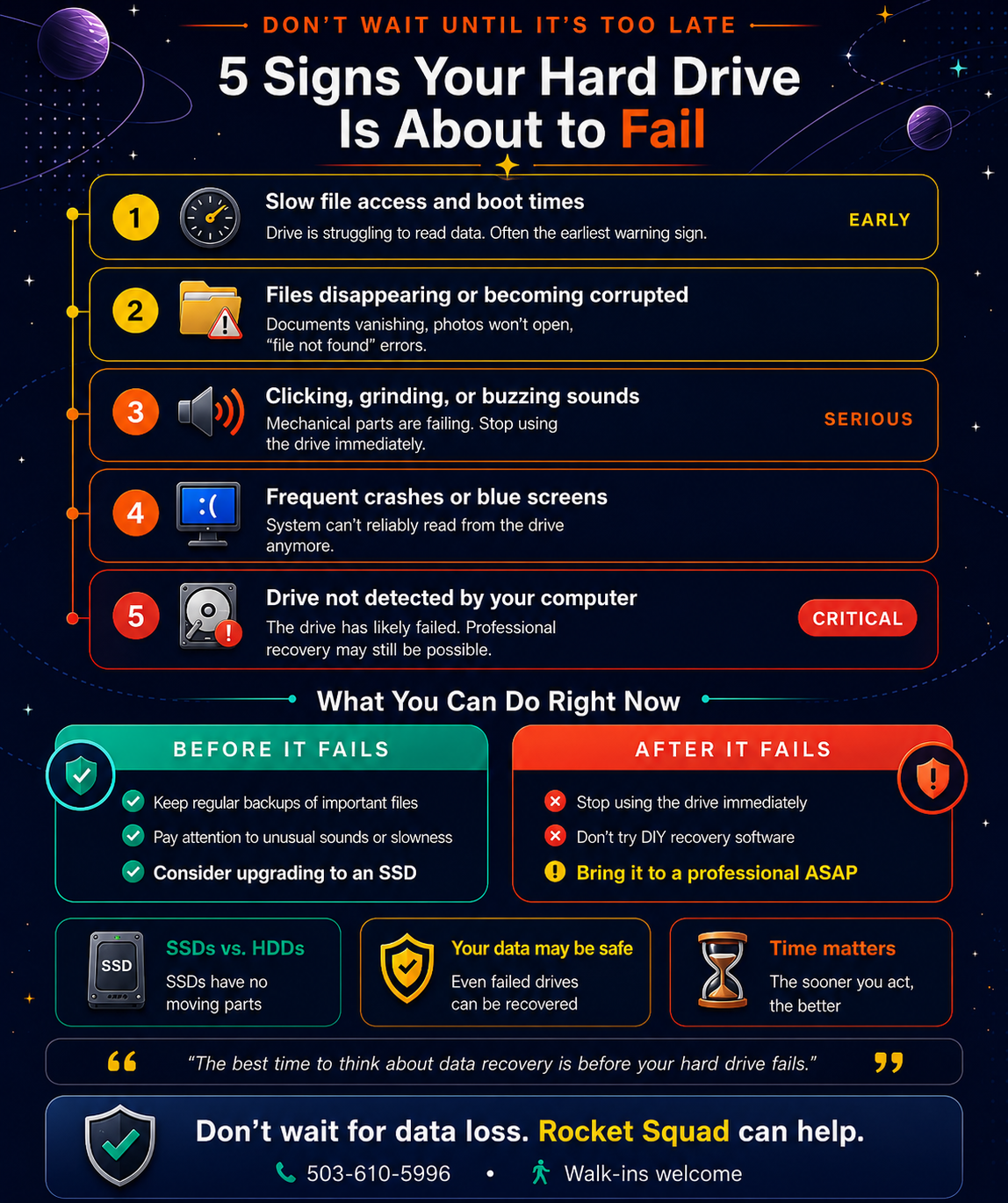
Slow file access and boot times.
If your computer has gotten noticeably slower — especially when opening files, saving documents, or starting up — your drive may be struggling to read data. While slowness can have other causes, a sudden change is worth paying attention to.
Files disappearing or becoming corrupted.
If documents vanish, photos won’t open, or you’re getting “file not found” errors on files you know were there, the drive may be losing its ability to store data reliably.
Clicking, grinding, or buzzing sounds.
A healthy hard drive is nearly silent. If you’re hearing rhythmic clicking, grinding, or loud whirring, the mechanical components inside are likely wearing out. If you hear this, stop using the drive immediately. Every minute it runs increases the risk of further damage.
Frequent crashes or blue screens.
If your computer is crashing regularly, freezing, or throwing blue screen errors, it could be a sign that the system can’t reliably read from the drive anymore.
The drive isn’t detected.
If your computer no longer recognizes the drive at all — it doesn’t appear in File Explorer or the BIOS — the drive has likely failed. Professional recovery may still be possible, but time is critical.
What to Do When a Drive Fails
The most important thing you can do when a drive starts failing is stop using it. Every additional read or write operation puts more stress on a dying drive and can make the damage worse — and the recovery harder.
Don’t try to “fix” it yourself.
Running disk repair tools, defragmenting a failing drive, or trying to reinstall Windows on it can overwrite the very data you’re trying to save. DIY recovery software can also make things worse if the drive has a physical problem — which is the most common cause of failure.
Don’t open the drive.
Hard drives are sealed for a reason. The platters inside are extremely sensitive to dust and debris. Opening a drive outside of a clean-room environment can cause irreversible damage.
Do bring it to a professional.
A professional data recovery service can assess the damage, determine what’s recoverable, and use specialized tools and techniques to extract your files safely. At Rocket Squad, we handle data recovery for both HDDs and SSDs and will always give you an honest assessment of what’s possible before any work begins.
What About SSDs?
SSDs fail differently than hard drives. Because there are no moving parts, you won’t hear clicking or grinding. Instead, SSD failure often looks like sudden disappearance of the drive, files becoming read-only, or the system failing to boot without any prior slowdown.
The good news is that data can often still be recovered from a failed SSD, depending on the type of failure. The same rule applies: stop using it and bring it in.
The Best Data Recovery Is Prevention
The most reliable way to protect your data isn’t recovery — it’s having a backup in the first place. A good backup means your files exist in at least two places, so a single drive failure doesn’t mean losing everything.
Options range from an external hard drive you back up to regularly, to cloud backup services that run automatically in the background, to a combination of both. The specifics matter less than the habit — any backup is better than no backup.
If you’re not sure whether your backup is working or covering everything important, that’s something we can help with during a tune-up.
Worried About Your Drive? Let’s Take a Look.
If your computer is showing signs of drive trouble — or if you’re already dealing with a drive that’s failed — bring it by Rocket Squad on NE Broadway in Portland. We’ll assess the situation, let you know what’s recoverable, and give you a clear picture of next steps. We handle data recovery on all types of drives and all major PC and laptop brands.