
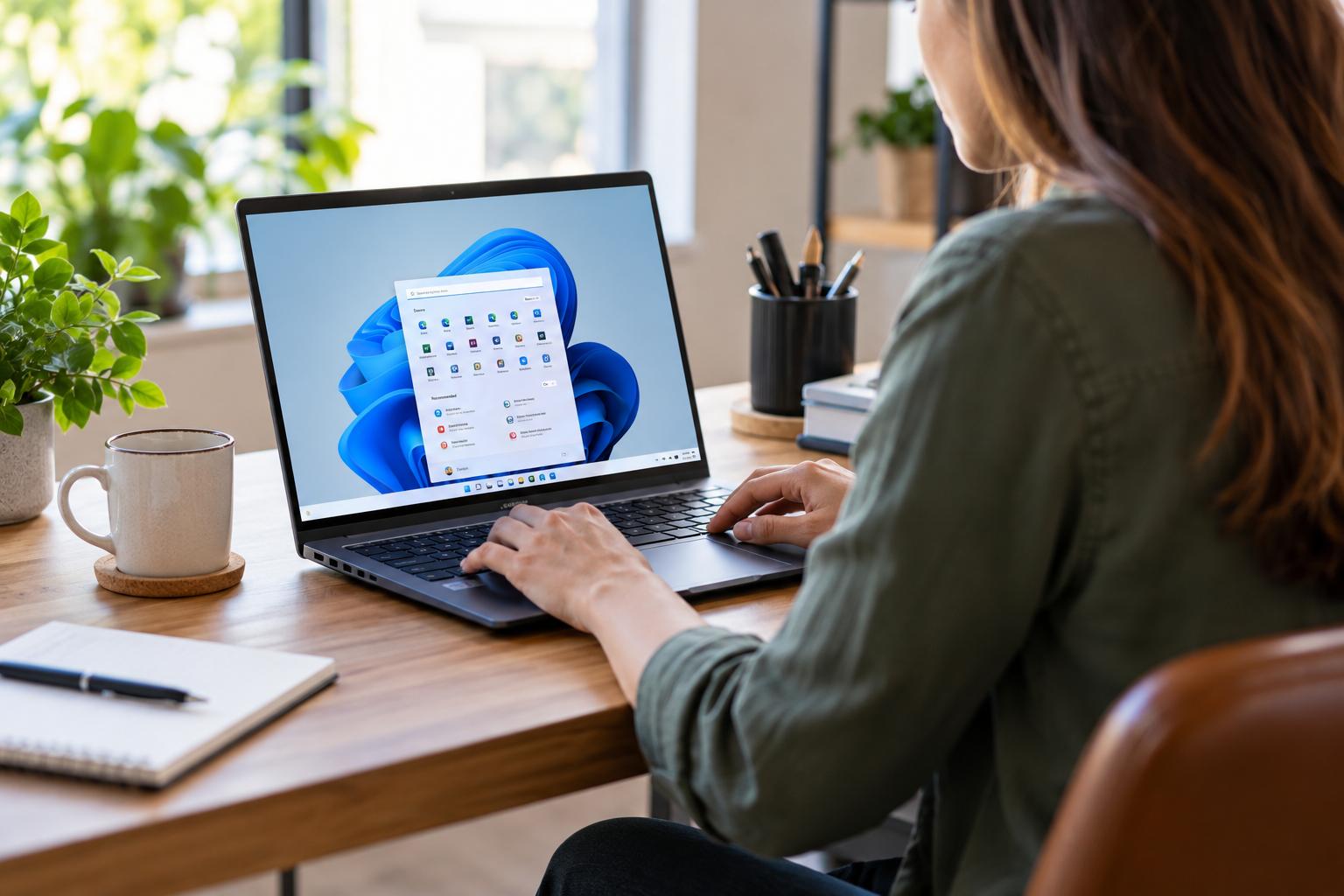
Windows has quietly picked up a lot of useful features over the years. The problem is that almost none of them announce themselves. They sit there, already installed, already paid for, waiting for someone to find them.
We see a lot of computers at our shop and we have noticed the same thing over and over: people install third party software to do something Windows already does. Sometimes that software is fine. Sometimes it is the reason the machine ended up on our bench.
Here are eight things your PC can already do. Nothing to download, nothing to buy.
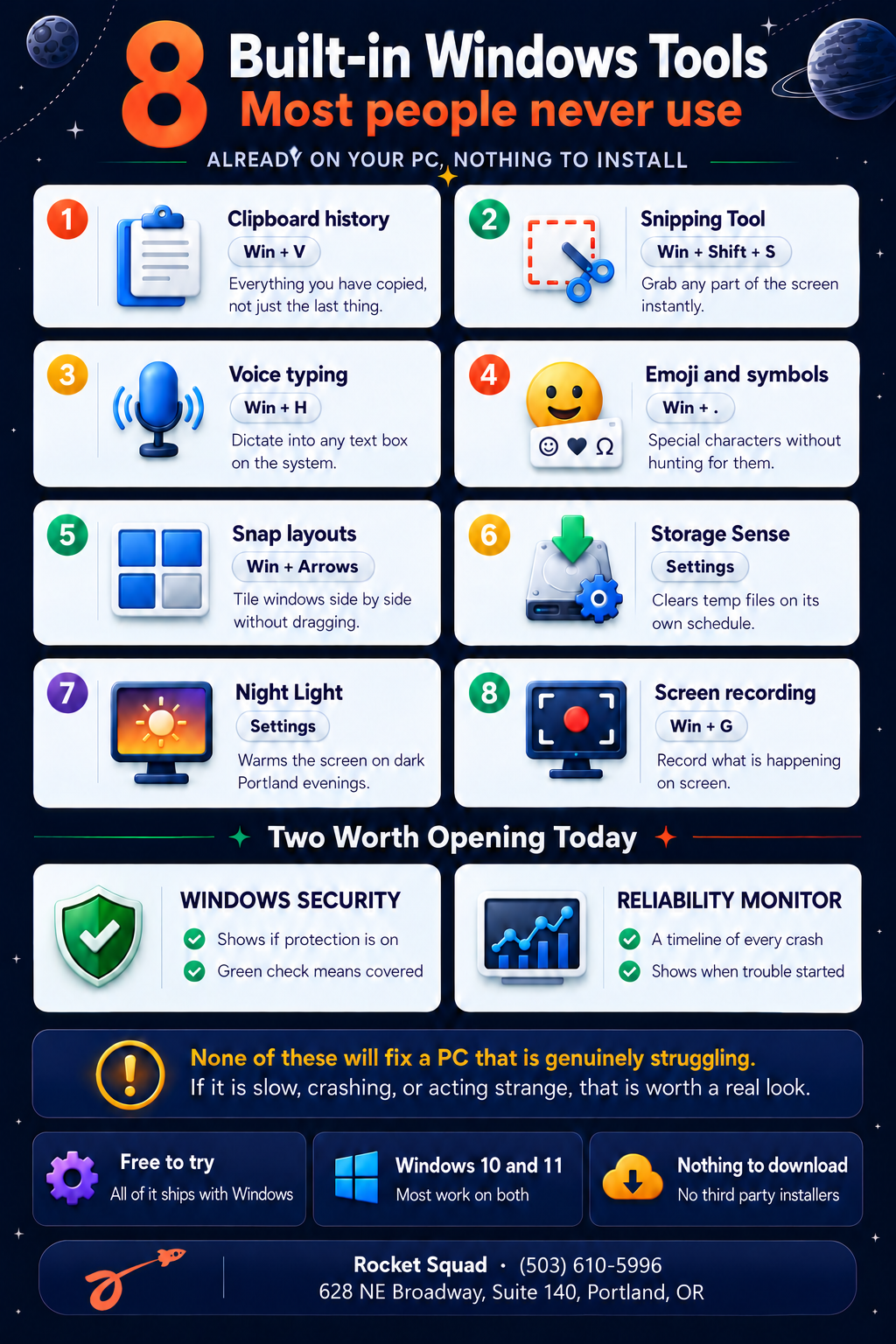
1. Clipboard History
Press the Windows key and V together. Windows shows you a list of the last several things you copied, not just the most recent one.
The first time you press it, Windows will ask if you want to turn the feature on. Say yes. From then on you can copy three or four things in a row and paste them in any order you like. If you have ever copied something, then copied something else, then realized you needed the first thing back, this is the fix.
2. The Snipping Tool
Press the Windows key, Shift, and S together. The screen dims and you can drag a box around any part of it. Whatever you select gets copied, ready to paste into an email, a document, or a message.
This is far better than pressing Print Screen and hoping for the best. It also works when you need to show someone an error message, which is handy when you are describing a problem to us over the phone.
3. Voice Typing
Press the Windows key and H together while your cursor is in any text box. Windows starts listening and types what you say.
It handles punctuation if you say it out loud. It is not perfect, but for long emails or notes it is faster than typing for most people, and it costs nothing.
4. The Emoji and Symbol Panel
Press the Windows key and the period key together. A small panel opens with emoji, symbols, special characters, and accented letters.
This is the easy way to type a degree sign, a copyright symbol, or a name with an accent in it without hunting through menus or searching the internet for something to copy.
5. Snap Layouts
Hold the Windows key and press the left or right arrow. The window you are using jumps to that half of the screen, and Windows offers to fill the other half with something else.
On Windows 11 you can also hover over the maximize button on any window to see a grid of layout options, including three and four window arrangements on a wide monitor. If you spend your day dragging windows around trying to see two things at once, this will save you real time.
6. Storage Sense
This one lives in Settings under System, then Storage. Turn on Storage Sense and Windows will clear out temporary files and empty the recycle bin on a schedule you choose.
It is not a miracle cure for a full drive, and it will not recover space that is actually being used by your files. But it does quietly handle the junk that otherwise piles up for years.
7. Night Light
Also in Settings, under System and then Display. Night Light shifts the screen toward warmer colors on a schedule.
In Portland, where it is dark by late afternoon for a good part of the year, this is a small thing that makes evening computer time easier on your eyes. Set it to come on at sunset and forget about it.
8. Screen Recording
Press the Windows key and G together. The Game Bar opens, and despite the name it will record any window on your screen, not just games.
This is useful for capturing a problem that is hard to describe, or for recording a short walkthrough for someone else. The recording lands in your Videos folder.
Two More Worth Opening Today
These two are less fun but more important.
Windows Security
Search for it in the Start menu and open it. This is the dashboard for the protection that is already built into Windows. If everything shows a green check, your basic protection is on and working. If something shows a warning, that is worth paying attention to.
A lot of people pay for security software without ever checking whether what they already have is turned on. Take thirty seconds and look.
Reliability Monitor
Search for 'reliability' in the Start menu and open Reliability Monitor. You will get a timeline of your PC's life, with a mark on every day something crashed, failed, or went wrong.
You do not need to understand the technical entries. What is useful is the shape of the chart. If the line was steady and then fell off a cliff three weeks ago, something changed three weeks ago. That is genuinely helpful information, and it is the kind of thing our technicians look at too.
When the Built-in Tools Are Not Enough
Everything above is worth knowing, and none of it will fix a computer that is genuinely struggling. If your PC is slow, crashing, overheating, or behaving in ways that do not make sense, no keyboard shortcut is going to sort that out.
That is where we come in. Bring it by Rocket Squad and we will take a proper look, tell you what is actually going on, and give you a clear quote before any work starts.