
Can a Water-Damaged Laptop Be Saved?
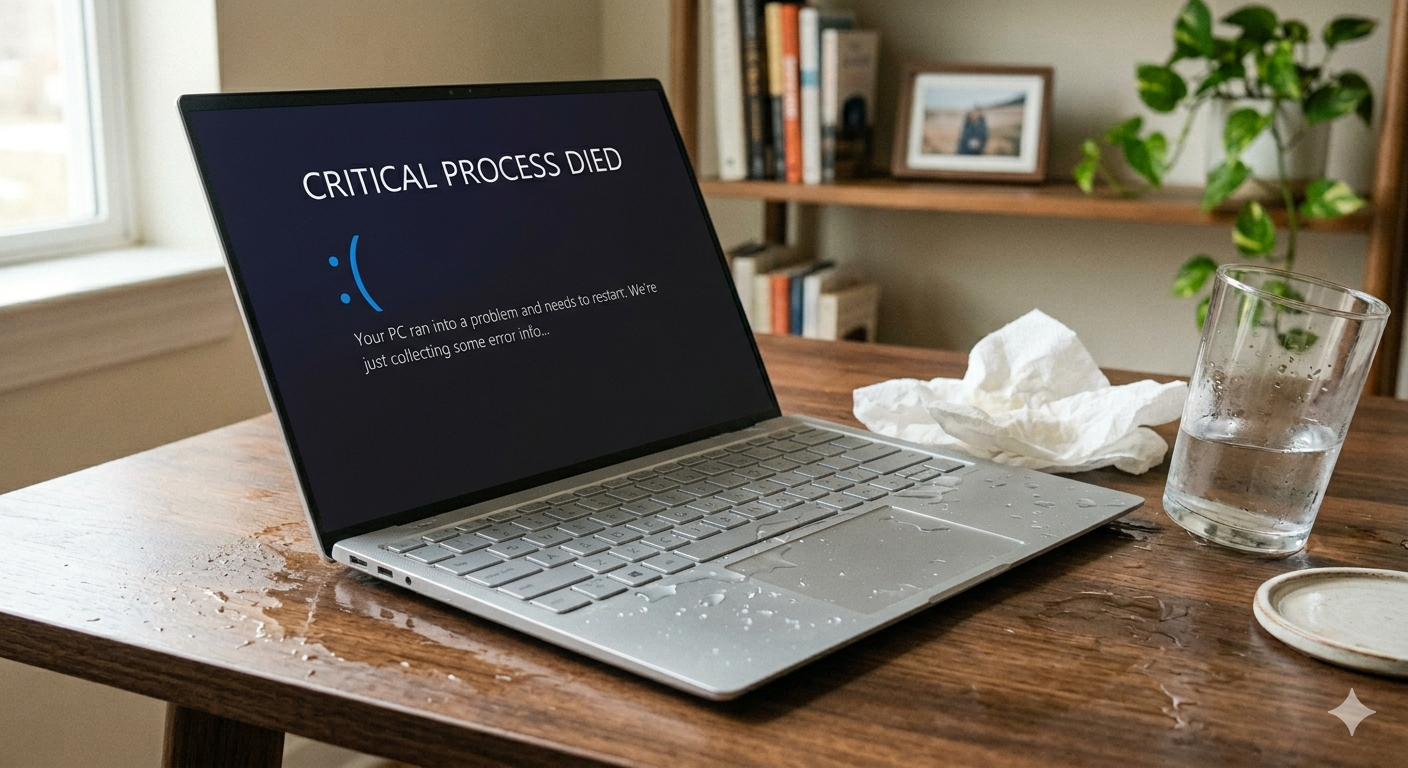
A knocked-over coffee. A water bottle that wasn’t closed all the way. A glass of wine that tipped at exactly the wrong angle. Liquid and laptops don’t mix, and when it happens, the panic is immediate.
The good news? A water-damaged laptop can often be saved — but what you do in the first few minutes makes a huge difference. Here’s what to do, what to avoid, and how a professional repair can help.
What to Do Immediately
The clock starts the moment liquid hits your laptop. Every second it stays powered on with liquid inside increases the risk of a short circuit that can permanently damage components.
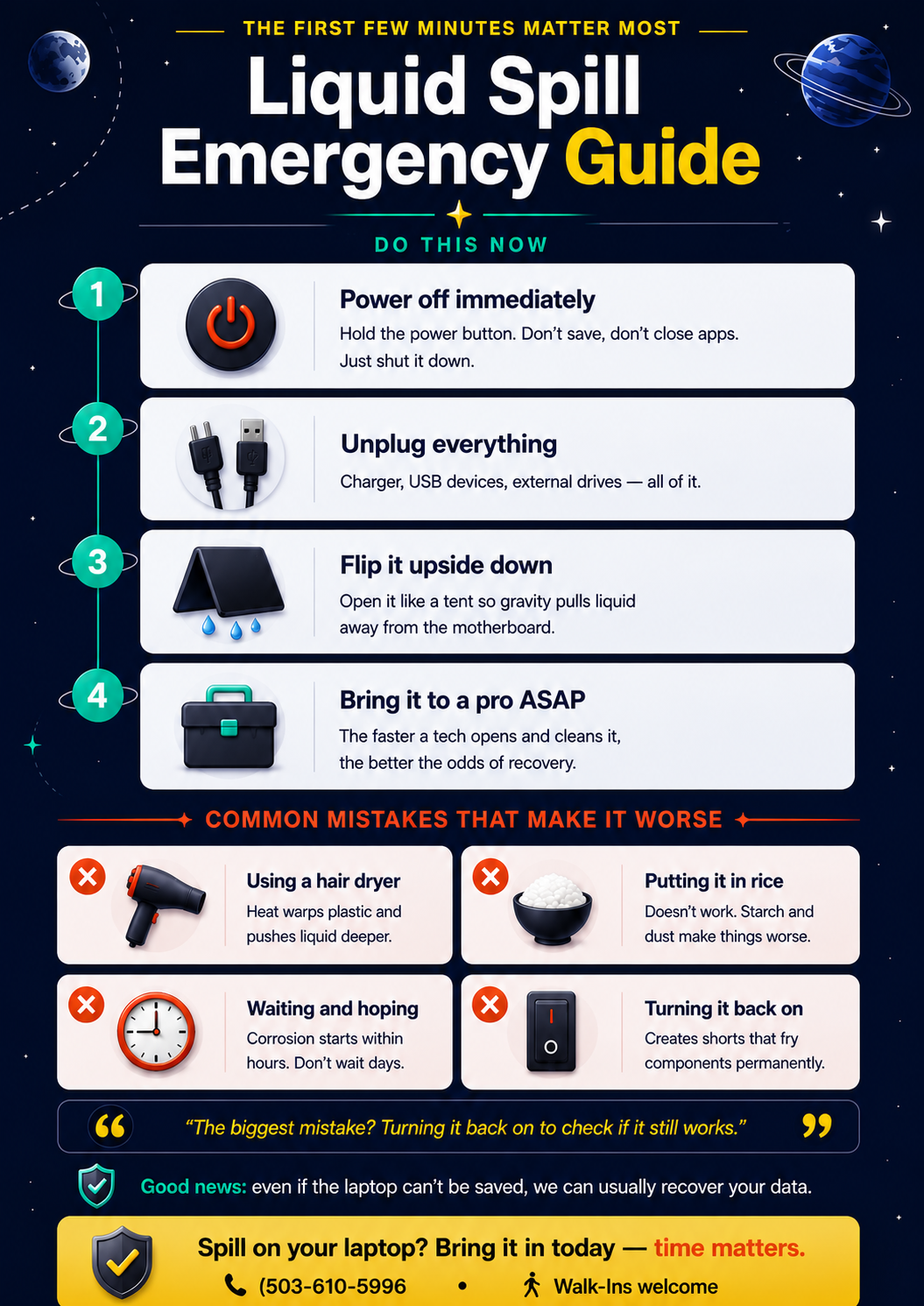
Power it off immediately.
Don’t try to save your work. Don’t close programs. Just hold the power button down until it shuts off. This is the single most important thing you can do.
Unplug everything.
Disconnect the charger, any USB devices, external drives — anything connected to the machine.
Flip it upside down.
Open the laptop and place it face-down in an inverted V shape, like a tent. This lets gravity pull the liquid away from the most sensitive components on the motherboard.
Bring it to a professional as soon as possible.
The faster a technician can open the machine, clean out the liquid, and assess the damage, the better the odds of a full recovery.
What NOT to Do
Don’t turn it back on to see if it still works.
This is the number one mistake. Powering on a laptop with liquid still inside creates electrical shorts that can fry components that might otherwise have been fine. Resist the urge.
Don’t use a hair dryer.
Heat can warp plastic components, melt adhesive, and push liquid deeper into the machine. It does more harm than good.
Don’t put it in rice.
This is a persistent myth that doesn’t work. Rice doesn’t absorb moisture fast enough to help, and the starch and dust from rice grains can get into ports and components, creating new problems.
Don’t wait and hope it dries out.
Liquid — especially coffee, soda, or anything sugary — leaves behind residue that causes corrosion on circuit boards. Even if the laptop seems to work fine after drying, corrosion can cause failures days or weeks later.
Can It Actually Be Saved?
What was spilled. Water is the least damaging. Coffee, soda, juice, and wine are worse because they leave behind sugars and acids that accelerate corrosion.
How much was spilled. A few drops on the keyboard is very different from a full cup soaking through the chassis.
How quickly you acted. A laptop that was powered off immediately and brought in the same day has a much better prognosis than one that was left on, dried out at home for a week, and then brought in when it stopped working.
Professional liquid damage repair involves opening the machine, carefully cleaning affected components, inspecting for corrosion, and testing each component to see what survived. In many cases, the laptop can be fully restored. In others, individual components may need to be replaced. And sometimes, the damage is too extensive — but we’ll always give you an honest assessment before recommending any work.
What About My Data?
Even in cases where the laptop itself can’t be saved, the data on the hard drive or SSD can usually be recovered. Storage drives are often the most resilient component in a liquid spill. We can pull your files, photos, and documents and transfer them to a new machine or external drive.
Spill on Your Laptop? Don’t Wait.
If you’ve had a liquid spill, time is the most important factor. Power off your laptop, don’t try to turn it back on, and bring it to Rocket Squad as soon as you can. We’ll open it up, assess the damage, and give you a clear picture of what it will take to get it back. We handle liquid damage repair on all major Windows laptop brands at our NE Broadway service center in Portland.